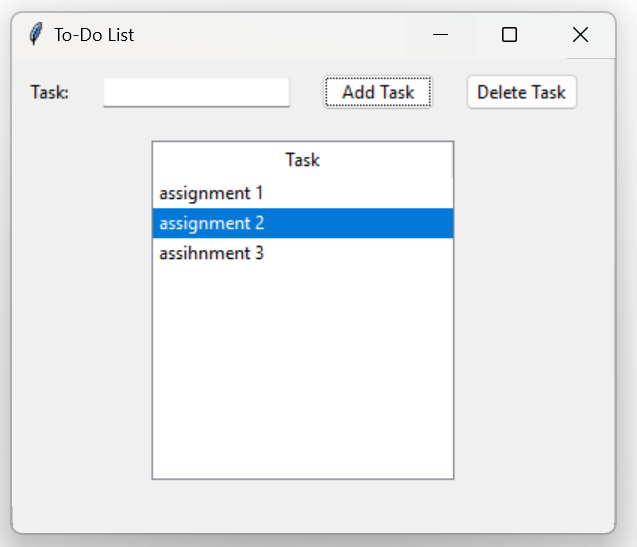
Solution
import tkinter as tk
from tkinter import ttk

def add_task():
    task = task_entry.get()
    if task:
        tree.insert("", "end", values=(task,))
        task_entry.delete(0, tk.END)

def delete_task():
    selected_item = tree.selection()
    if selected_item:
        tree.delete(selected_item)

# Create the main window
root = tk.Tk()
root.title("To-Do List")

# Create and place widgets
task_label = ttk.Label(root, text="Task:")
task_label.grid(row=0, column=0, padx=10, pady=10, sticky=tk.W)

task_entry = ttk.Entry(root)
task_entry.grid(row=0, column=1, padx=10, pady=10)

add_button = ttk.Button(root, text="Add Task", command=add_task)
add_button.grid(row=0, column=2, padx=10, pady=10)

delete_button = ttk.Button(root, text="Delete Task", command=delete_task)
delete_button.grid(row=0, column=3, padx=10, pady=10)

# Create a TreeView
columns = ("Task",)
tree = ttk.Treeview(root, columns=columns, show="headings")
for col in columns:
    tree.heading(col, text=col)
    tree.column(col, width=200)
tree.grid(row=1, column=0, columnspan=4, padx=10, pady=10)

# Start the Tkinter event loop
root.mainloop()